
Resources
Help & articles
Guides, how-tos and news for your catering business.
Help topics
Quotes & Orders
Reordering Categories & Packages
Drag categories, menu headers and packages into any order on a single quote without changing the default order used by your other quotes.
Drag categories (or menu headers) and packages into whatever order you like directly on a single quote — without changing the default order used by your other quotes.
What This Does
When you open a quote, the menu groups and any packages appear in your account’s default order. A “menu group” is a menu header if you use them (for example “Morning tea” or “Lunch”), or a category if you don’t. Sometimes a particular event reads better in a different order — you might want a package listed first, or the canapés above the mains for one client. You can now rearrange them on that quote alone, and the new order shows on the customer’s quote and PDF.
How to Reorder
- Save any changes in the quote editor, then open the saved quote’s internal page from the Quotes list. This is the page showing the quotation and its Actions menu.
- Use a larger browser window and hover just to the left of a menu-group heading or a package row. A six-dot drag handle appears.
- Drag the handle up or down within its list, then release it. The arrangement saves automatically.
View Full Order on the editor’s items page opens a review modal. It does not contain these drag handles. Neither the customer view nor the PDF is a reordering screen.
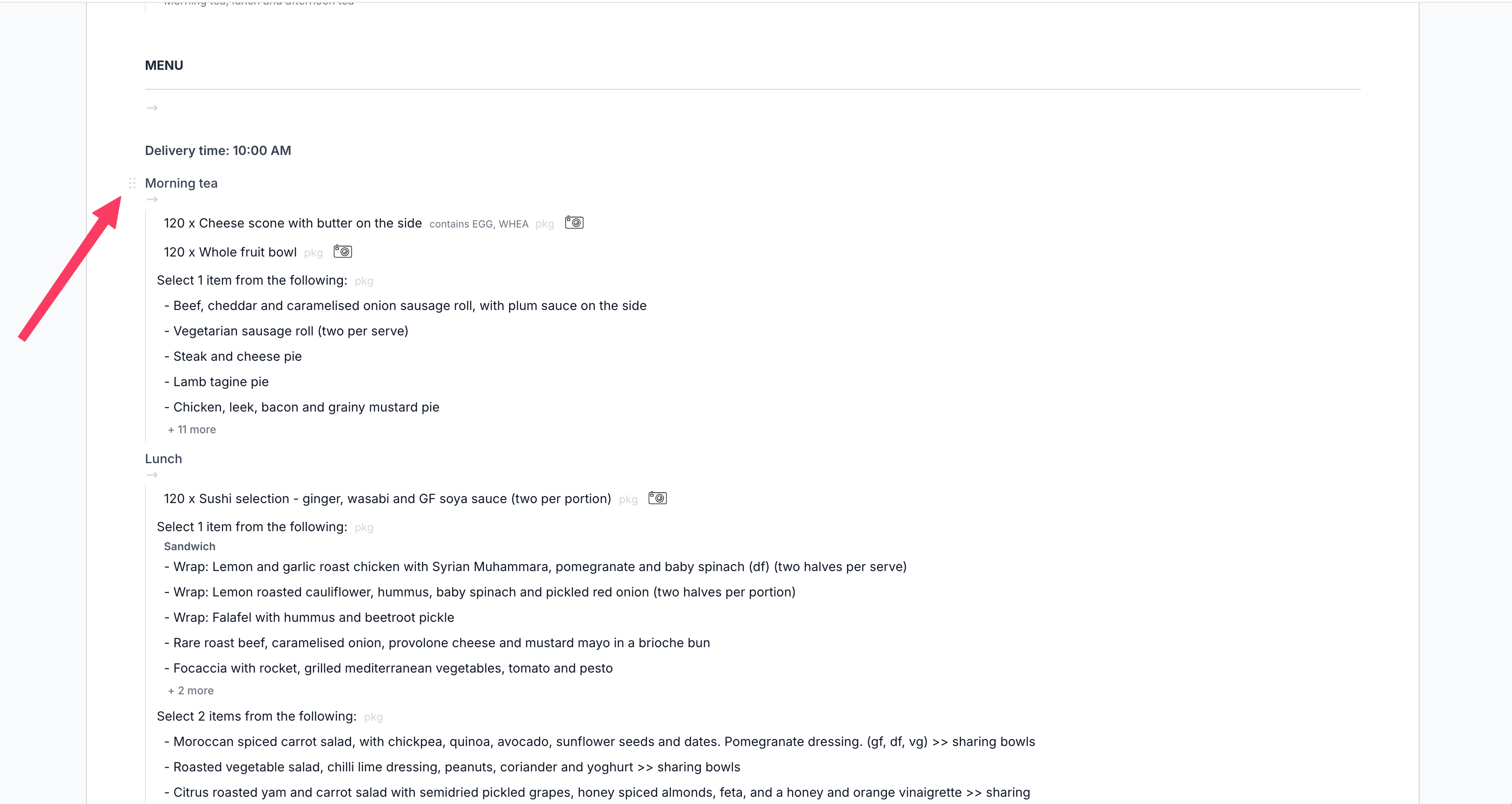
- Menu headers or categories — grab the handle beside a menu group heading (a menu header if you use them, otherwise a category) and drag the whole group up or down.
- Packages — grab the handle beside a package row and drag it into position within the packages list.
The new order is saved automatically as soon as you drop it — there’s no separate Save step for the arrangement.
It Only Affects This Quote
Reordering here changes this one quote and nothing else. Your other quotes and your account-wide default order are untouched. If instead you want to change the order that every future quote uses, set the default from Settings — see Changing Item Order, which covers reordering menu headers, categories and items from your settings.
Rule of thumb: drag on the quote for a one-off arrangement that suits this event; change it in Settings when you want that order to become the default for all future quotes.
Good to Know
- The drag handles stay hidden until you hover, so they never clutter the quote — just move your cursor over a category or package to reveal them.
- Dragging is available on a larger screen. On a phone the handles aren’t shown.
- Your customer never sees the handles — they only see the finished order you’ve set on their quote and PDF.
Moving a group is different from moving an item
The handle moves a whole menu-header, category or rule-header block, including its items. It does not reorder individual dishes within that block. A rule-header block’s subheadings travel with it.
A group can move only within its own section and delivery-time block. A package row can move only within the Packages list; moving that row does not gather or move all its included dishes beneath it. For headings and item order, see How Quotes Are Grouped & Ordered. To change the catalogue order of individual items, see Changing Item Order.
If no handle appears, first check that you are on the saved internal quote, not View Full Order, a customer preview or an old version. Increase the browser width and hover beside the heading. Phone-sized layouts hide the handles. Chef-only users cannot access this quote screen. If those checks do not resolve it, report the page and heading you are viewing to support rather than trying to drag an individual item row.