
Resources
Help & articles
Guides, how-tos and news for your catering business.
Help topics
Menu & Items
Dietary Codes, Allergens & Menu Disclaimer
Set up dietary codes and allergens, configure an account-level menu disclaimer, assign codes to items, and override them per order for bespoke menus.
How to set up dietary codes, allergens, and menu disclaimer, assign them to items, and override per order for bespoke menus.
What Are Dietary Codes and Allergens?
They cover two related-but-different jobs:
- Dietary codes — short identifiers like GF for Gluten-Free or V for Vegan that tell the customer a dish is suitable for a particular diet. Displayed as neutral badges.
- Allergens — short codes like GLUT, MILK, SULF that flag what a dish actually contains. Displayed as amber warning badges with a “contains: gluten, milk, sulphites” caption.
Both are managed in the same Settings page and appear automatically on quotes, chef dockets, event briefs, PDF menus, the driver run sheet, the kitchen reports, and online menus. Kitchen paperwork can be an exception: each kind has a switch that keeps it off chef dockets and reports, covered under Keeping Them Off Kitchen Paperwork below. For background on why they’re modelled separately, see our article Allergens: Flag What Each Menu Item Contains, Separate from Dietary Codes.
Setting Up Dietary Codes
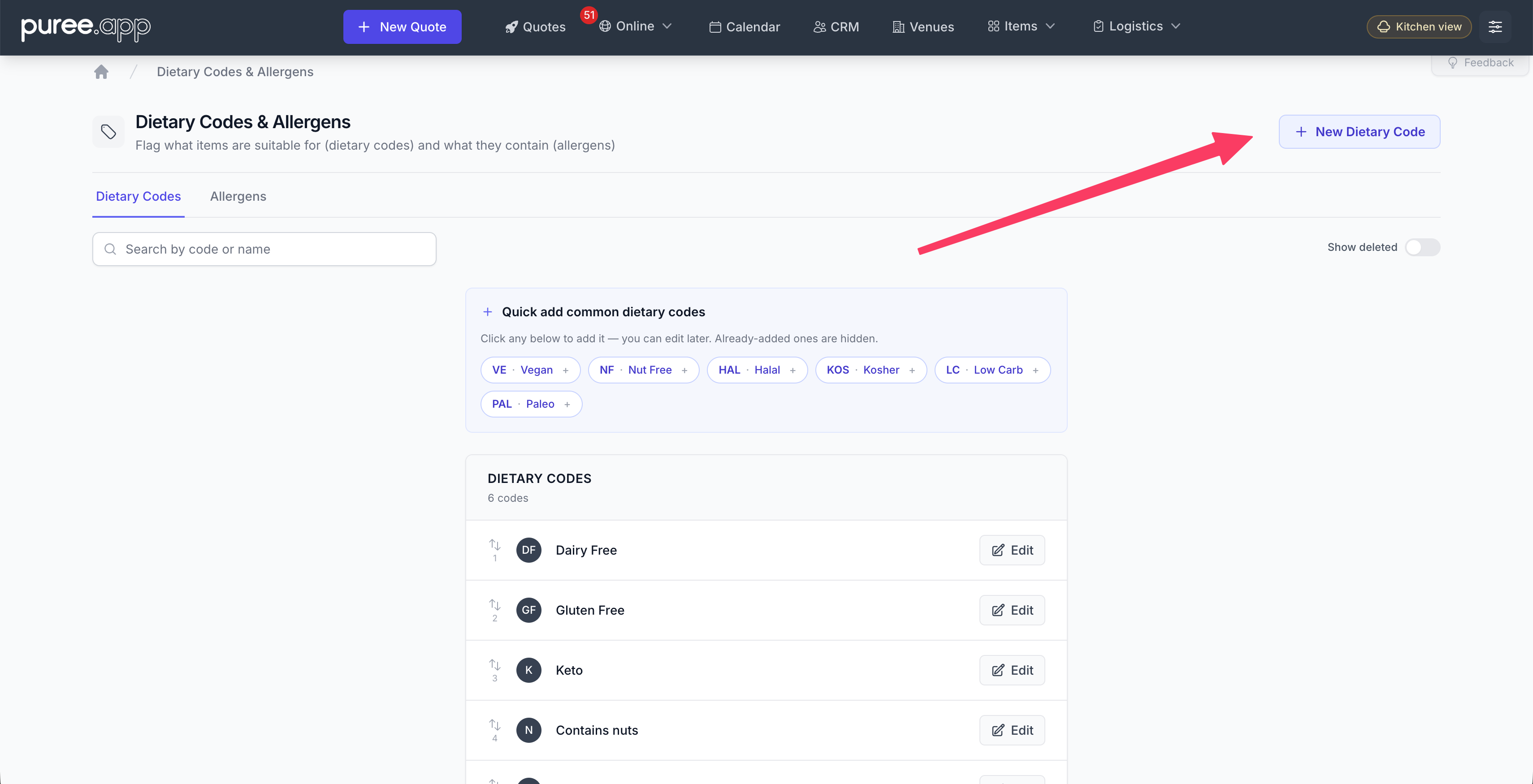
Go to Settings → Dietary Codes. The page has three tabs at the top — Dietary Codes, Allergens, and Disclaimer. On the Dietary Codes tab, click New Dietary Code, enter a short code (up to 3 characters) and a full name. Common examples: GF (Gluten-Free), DF (Dairy-Free), V (Vegetarian), VE (Vegan), N (Contains Nuts).
To get started quickly, use the Quick add common dietary codes panel — click a suggested code (Vegan, Nut Free, Halal, Kosher, and so on) to add it instantly, then edit it later if you need to. Codes you’ve already added are hidden from the suggestions.
Setting Up Allergens
Switch to the Allergens tab and click New Allergen. Each allergen has:
- A short code (up to 5 characters — e.g.
GLUT,MILK,EGG,FISH,SULF) for tight badges - A full name (e.g. Gluten, Milk, Egg, Sulphites) shown in the “contains: …” caption
Allergens are entirely under your control — there’s no fixed list. Add only the ones you actually declare. UK caterers typically configure the 14 statutory allergens; US caterers the Big 9; AU/NZ caterers the 11.
Menu Disclaimer
The Disclaimer tab lets you configure an account-level general statement that appears on every customer quote. This is not a per-dish note — it’s a single text block (for example, “All dishes are prepared in a kitchen that handles nuts, dairy, and gluten”) that prints in the Menu section of your quotes.
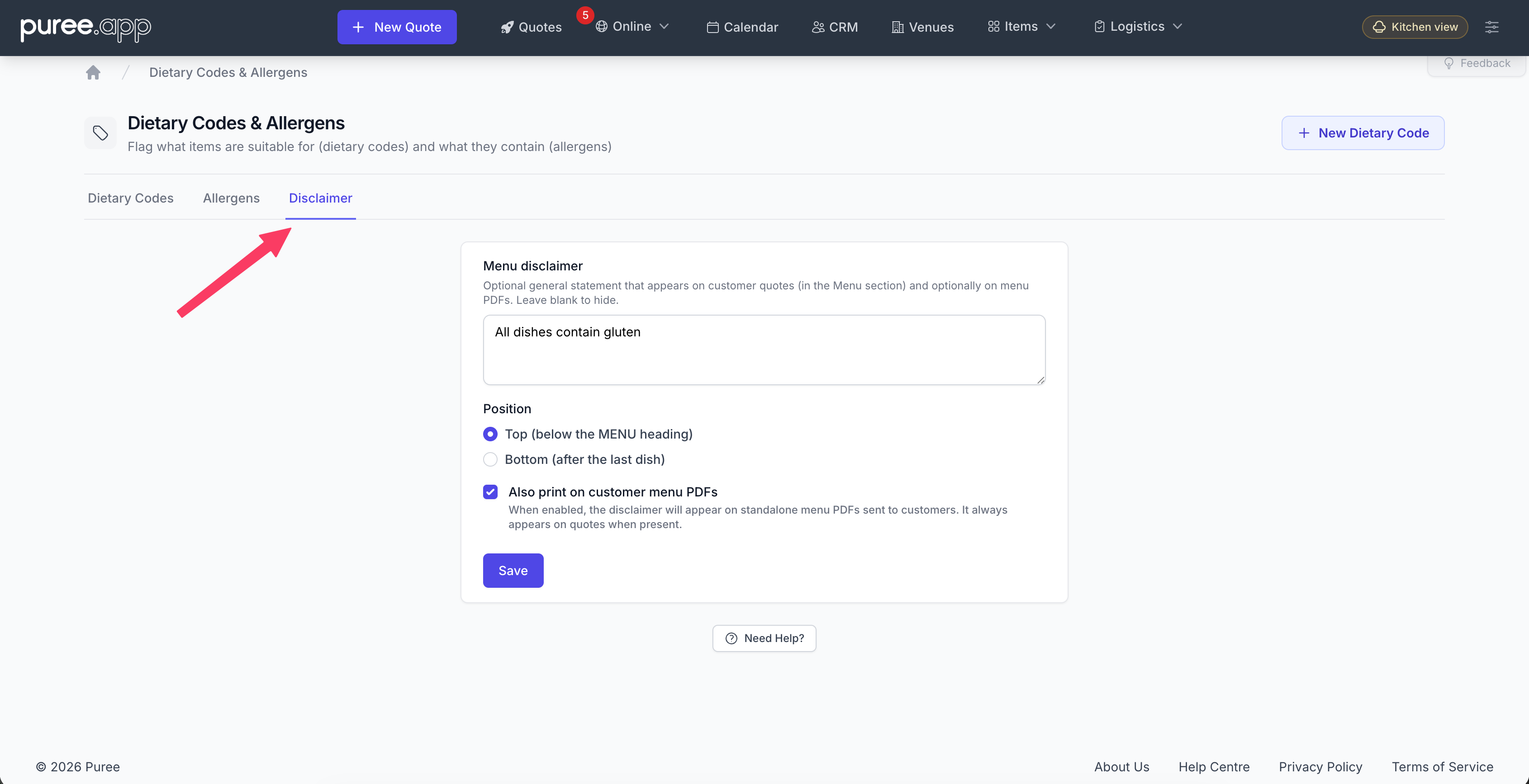
Switch to the Disclaimer tab, type your statement, choose Top (below the MENU heading, before dishes) or Bottom (after the last dish), and optionally tick Also print on customer menu PDFs. Leave the text blank to hide it. The disclaimer appears on the HTML customer quote, the quote PDF, and every custom quote template. It does not appear on kitchen dockets or chef reports.
For more detail, see our article Menu Disclaimer: A General Statement on Every Customer Quote.
Assigning Codes and Allergens to Items
Navigate to Menu Items, open an item to edit, and scroll the right-hand column. You’ll see two separate sections: Dietary Codes (neutral) and Allergens (amber-tinted). Tick whatever applies. A dish can carry both — for example, a gluten-free brownie that contains soya gets GF in dietary codes and SOYA in allergens.
A bundle is the exception. On a menu item ticked as This item is a bundle (a platter or boxed lunch made of other catalogue items) those two sections are hidden, and anything already tagged on the item is cleared when you save. A platter’s codes come from what is in it, so tagging the wrapper as well would be a second answer that could disagree with the sandwiches. Tag the contents, and their codes print on each sub-line of the quote, the menus and the stickers, and travel onto the kitchen line. See our Items & Categories help page.
Overriding on the Order Form
You can override dietary codes for any individual order item directly from the order form — without changing the item’s defaults. When you click + Add next to a catalogue item, the item’s defaults are shown below the item name. Tick or untick as needed for this order; the change applies to this order only.
This is useful when a dish is prepared differently for a specific client — for example, a standard item made gluten-free for one event, or a dish served without a typical allergen at a particular venue.
One-Off Items and Bespoke Menus
The + Add one-off item button at the bottom of each category lets you add a custom item to an order without it existing in your catalogue. You can give it a name, set a price, and assign dietary codes — all inline, in a single step.
This makes it fast to build fully bespoke menus for events where dishes are customised per client. A gluten-free canapé, a vegan tasting course, a dairy-free dessert — name it, price it, flag it, done.
Where They Appear
- Quotes & PDF menus — a dietary key and (if any are used) an amber allergen key print automatically. Each menu row shows dietary badges plus a “contains: …” caption under the dish name. If you’ve configured a menu disclaimer, it also appears in the Menu section (top or bottom, depending on your setting).
- Chef dockets — codes appear next to each item, and allergens are shown in bold amber so the kitchen can scan for risk at a glance. Dietary codes and allergens can each be switched off here, see below
- Event brief — dietary information is included for each item
- Driver run sheet — delivery documentation includes dietary flags
- Kitchen reports — codes are shown in the prep summaries, the production report and the item report. These follow the same switches as the chef docket
- Online menus — dietary badges and an inline “contains …” line are displayed next to item names
Keeping Them Off Kitchen Paperwork
Some kitchens want a clean prep list and read dietary requirements off the notes instead. On the Dietary Codes & Allergens page there is a Show on chef dockets and reports switch, and each tab has its own: the switch on the Dietary Codes tab controls dietary codes, and the one on the Allergens tab controls allergens. So you can keep allergens printing for safety while hiding the dietary codes, or the other way round.
Turning a switch off removes those codes from the chef docket PDF, the consolidated prep and packing report, and every kitchen report under Reports (the daily report, the 7-day and weekly summaries, the production report, the item report and upcoming items), including their PDF and CSV downloads. Where hiding a code leaves two otherwise identical lines, the report merges them into one row with a combined quantity.
Nothing customer-facing changes. Quotes, PDF menus, online menus, the event brief and the driver run sheet keep showing codes and allergens exactly as before, and the codes stay saved on the order either way, so switching back on brings them straight back.
Overrides Are Saved with the Order
Any overrides set on an order item are stored with the order, including allergen selections. If you reopen the order form later, the codes are restored exactly as you set them — they won’t revert to the item’s defaults. This means a signed contract preserves the dietary and allergen information exactly as the customer accepted it, even if the underlying item is later edited.
Existing Item Names Containing Allergens
If your existing items have allergens written inline in the item name (e.g. “GF Fruit Tart (egg, milk)”), nothing changes automatically — Puree won’t try to parse or migrate that text. Tick the structured allergen field going forward, and clean up the freeform text in item names whenever it’s convenient.