
Resources
Help & articles
Guides, how-tos and news for your catering business.
Help topics
Menu & Items
Sections & Departments
Organise menu items by kitchen area with sections and departments, so dockets and reports split the work the way your kitchen does.
Sections and departments organise menu items by kitchen area for workflow management and reporting.
Related Article: For a comprehensive overview of this feature, read our article New Sections/Departments Feature and Kitchen Reports in Puree.app.
Understanding Sections and Departments
Sections (also called Departments) organise menu items separately from categories. Categories organise items by type for quoting purposes (such as Baking, Sandwiches, or Salads). Sections organise menu items by kitchen area or workflow zone. Categories are customer-facing and affect how quotes are structured. Sections are internal and affect kitchen operations.
Sections are optional and only available for menu items. Beverages, equipment, and miscellaneous items cannot be assigned to sections.
Important: Sections are only available for menu items. If you need to organise other types of items, you’ll need to use categories or other organisational methods.
Common Examples of Kitchen Sections
Common section examples include Pastry for baked goods and desserts, Larder for cold preparations and salads, Grill for hot cooked items, and Prep for basic preparation items. You can create sections that match your kitchen layout and workflow.
A menu item can belong to any category and be assigned to a specific section. For example, chocolate chip cookies might be in the “Baking” category for quoting purposes and assigned to the “Pastry” section for kitchen workflow.
Setting Up Your Sections
From the Items menu, open Menu Item Categories to reach the Menu Organisation page. Your item categories are managed on the left; your kitchen sections / departments are on the right. Click + Add Section to create a new section, and give it a descriptive name that matches your kitchen’s terminology.
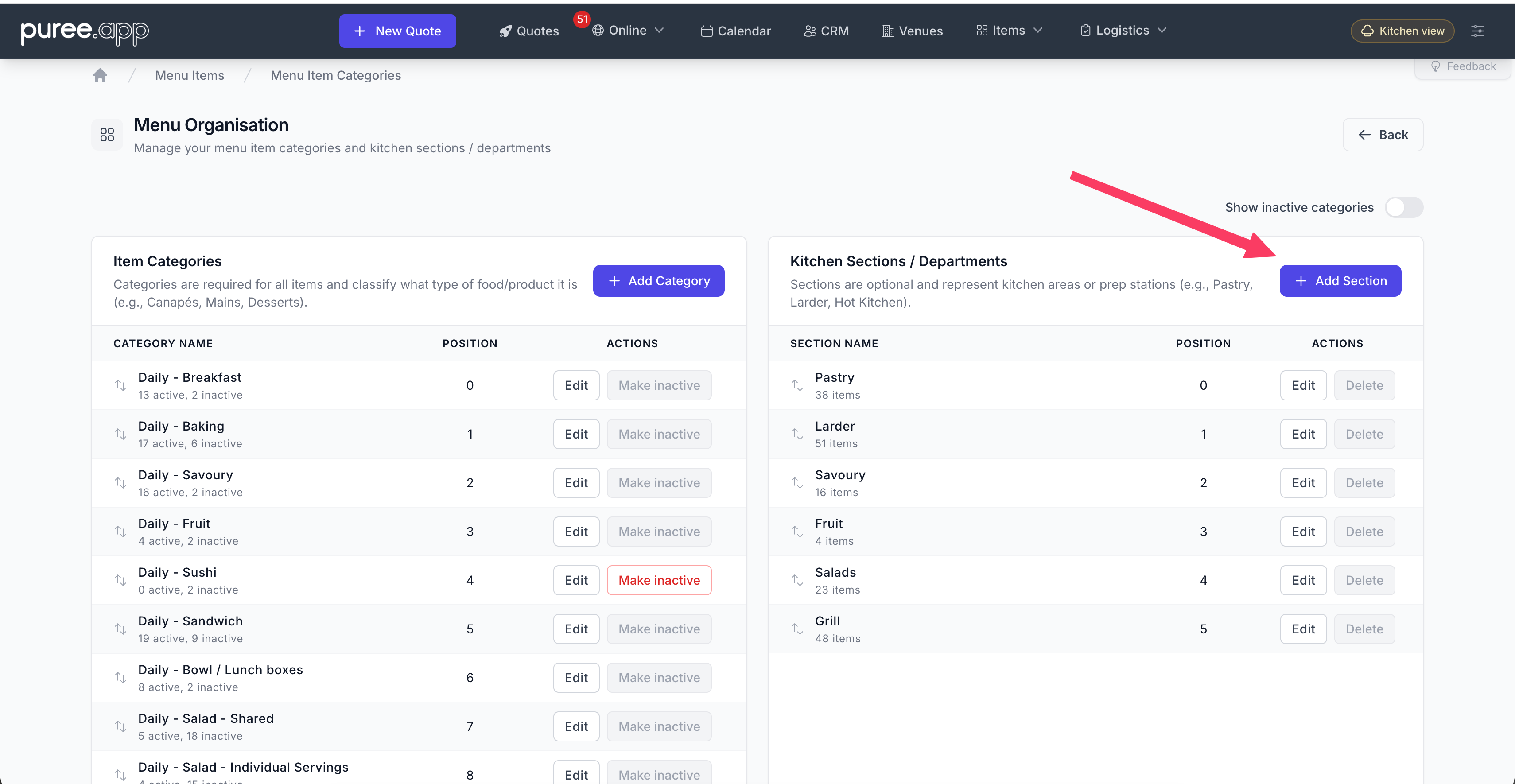
You can reorder sections using drag-and-drop. The order affects how sections appear in dropdown lists.
Assigning Menu Items to Sections
To assign menu items to sections, edit a menu item and select a section from the “Section/Department” dropdown field. The item will appear in section-filtered reports.
Assigning items to sections is optional. You can assign items gradually or focus on one section at a time.
How Sections Improve Kitchen Reports
Kitchen Reports (found under Logistics → Kitchen Reports) can be filtered by section. This generates a report showing only items for a specific kitchen area.
Section filtering allows you to print section-specific reports. Each team receives a report showing only their items.
Production Report
The Production Report organises items by time, showing when items need to be ready. It displays delivery times and departure times from run sheets, and groups items by completion time. When filtered by section, each department sees their timeline for the day.
Item Report
The Item Report organises by item type, showing total quantities needed and which orders they’re for. It groups identical items together with total quantities, shows which orders each quantity is for, and displays pending versus confirmed order status. Section filtering shows each kitchen area their total production requirements.
Using Sections
Section-specific reports show each kitchen area their workload and production requirements. Staff see only items relevant to their station with timing information for production scheduling.
Getting Started
Sections are optional. To use sections, create sections that match your kitchen areas or workflow zones, then assign menu items to sections. You can start with one or two sections and expand later.
Sections vs Categories
Categories structure quotes, appear on online menus, and are customer-facing. Sections organise kitchen operations and do not appear on quotes or customer-facing documents. Sections manage workflow and generate focused reports for kitchen teams.
Managing Sections
Assign new items to sections as you create them to keep reports accurate. You can remove sections, create new sections, and reassign items at any time.