
Resources
Help & articles
Guides, how-tos and news for your catering business.
Help topics
Quotes & Orders
Hiding the Customer View
Temporarily take a quote offline without deleting it. Anyone opening the link sees an unavailable message instead of the quote.
Temporarily take a quote offline for your customer — without deleting it or losing any of your work. When the customer view is disabled, anyone who opens the quote link sees a friendly “unavailable” message instead of the quote.
When to Use It
Sometimes you’ve sent a quote link but need to pause your customer’s access for a moment — while you rework the pricing, wait on a supplier, or hold the booking pending a phone call. Disabling the customer view lets you do exactly that. The quote stays exactly as it is in your account; only your customer’s ability to open the link is paused.
Disabling the Customer View
Open the quote and click the Actions menu at the top right. Choose Disable customer view. That’s it — the quote is now hidden from your customer.
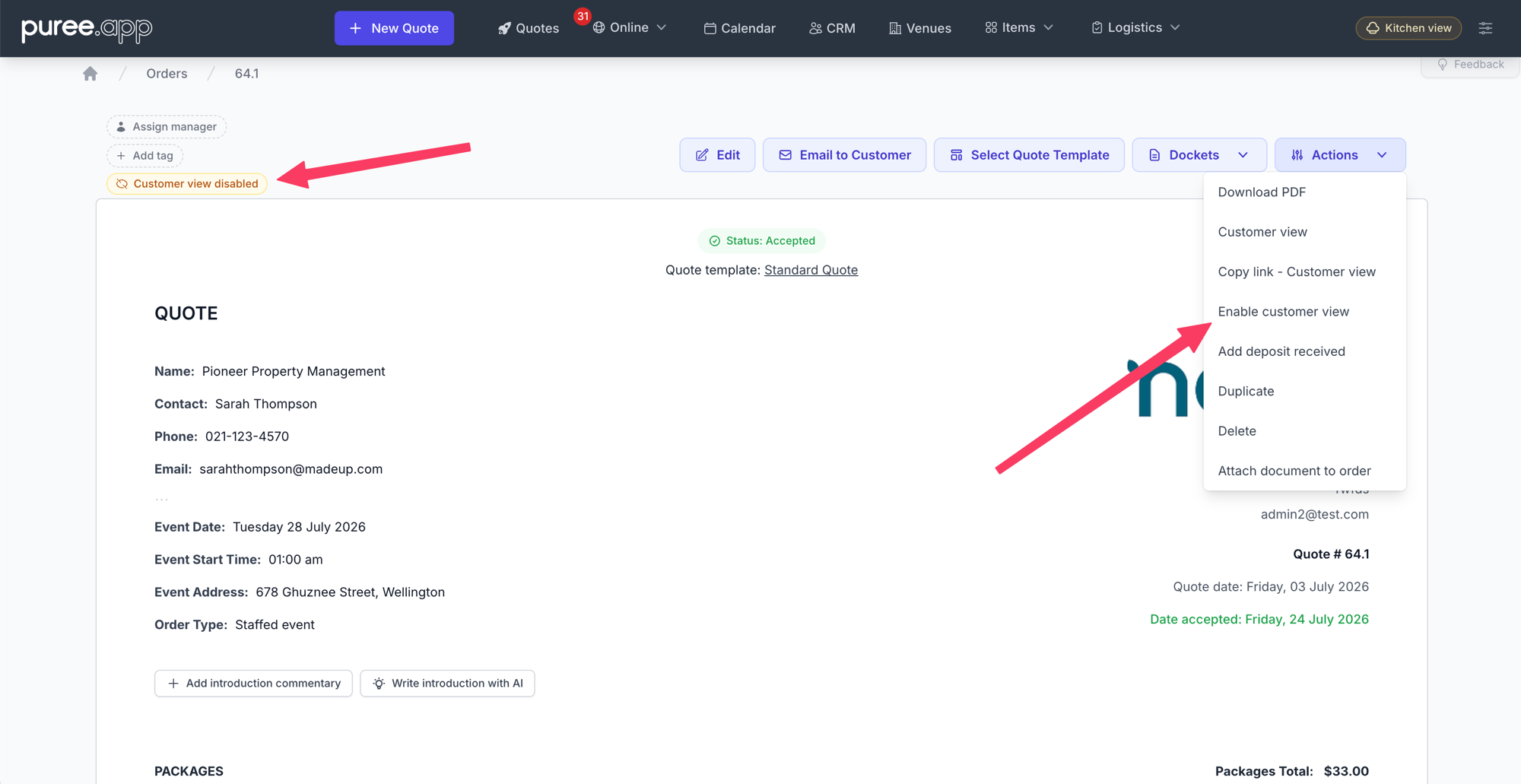
The Actions menu toggles between Disable customer view and Enable customer view. While it’s disabled, a “Customer view disabled” badge shows near the top of the quote.
While the view is disabled, anyone who opens the customer link — whether it’s the standard quote or one of your branded quote templates — sees this page instead:
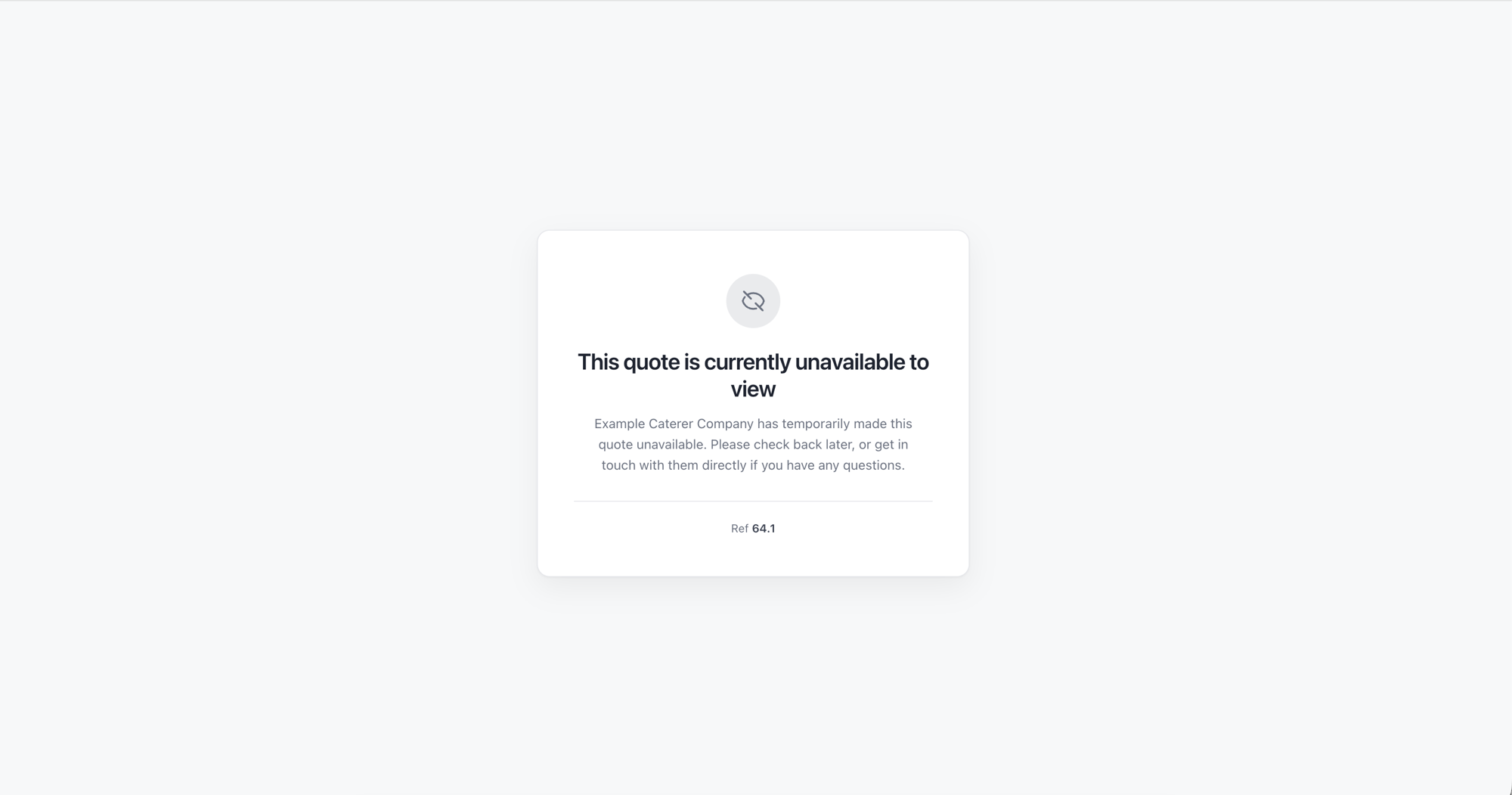
The message uses your quote’s own colours and fonts, so it still looks like it belongs to your brand. Your customer is invited to check back later or get in touch with you directly.
What Gets Blocked
Disabling the customer view is a full pause, not just a hidden page. While it’s off, your customer can’t:
- Open and read the quote (standard view or any branded template)
- Accept or decline the quote
- Make a payment through the quote link
This applies even if they saved or bookmarked the link earlier — the link keeps working, but it shows the unavailable page until you switch the view back on.
You Can Still Preview It
Disabling the customer view never blocks you. Use Actions → Customer view to preview the quote exactly as your customer would normally see it, even while it’s hidden from them. This lets you keep checking your changes look right before you switch the view back on.
Knowing It’s Disabled
Whenever a quote’s customer view is disabled, a “Customer view disabled” badge appears near the top of the quote in your account — so it’s always clear at a glance that your customer can’t currently see it. It’s easy to forget a quote is paused, so keep an eye out for the badge.
Re-enabling the Customer View
When you’re ready to let your customer back in, open the Actions menu again and choose Enable customer view. The quote link goes live again immediately and your customer can view, accept, and pay as normal.