
Resources
Help & articles
Guides, how-tos and news for your catering business.
Help topics
Operations
Consolidated Docket
Print one combined docket bringing an order's menu, beverage and equipment items onto a single sheet, with the chef and driver notes at the top.
Print one combined docket that brings an order’s menu, beverage and equipment items together on a single sheet — with the chef and driver notes at the top — instead of downloading each docket separately.
What is the Consolidated Docket?
The consolidated docket is a single prep and packing report for one order. It gathers everything the team needs to pull together in one place: the menu items, beverages and equipment, each grouped the way they normally appear on their own dockets. Your chef notes and driver notes are surfaced at the top so nothing important is buried.
It is not the chef and driver dockets stitched together — those are separate paperwork for two different roles. The consolidated docket is one continuous report designed for packing an order, so you only print and carry a single sheet.
What’s Included
Only the sections that actually apply to the order are shown, so you never get an empty heading:
- Menu — grouped by menu header or category. On delivery orders, items are grouped by their delivery run.
- Beverages — grouped by category, and split out by supplier where an external supplier is involved.
- Equipment — grouped by category and supplier in the same way.
Items marked as excluded from chef dockets (for example, online-only package placeholders) are left off, just as they are on the chef docket. If an order has no menu, no beverages or no equipment, that section simply doesn’t appear.
Every section reads the same way. A line uses its docket name where one is set, so the sheet calls a thing what your team calls it rather than what the customer was quoted. Its chef note or docket note prints against it in bold after two exclamation marks. A bundle’s contents are the rows rather than the kit, each tagged with the kit it came out of: (Bundle item: Cutlery Set). A menu bundle set to Show the bundle as one item (under On the chef docket and kitchen reports on the item) is the exception: it prints as one row with its contents underneath, the same as on the chef docket. Setting those up is on our Dockets help page, and our article Notes and Bespoke Names for Equipment: Tell the Warehouse Exactly What to Pack covers the warehouse side.
Delivery Times
For delivery orders, the delivery time is shown inline on each group’s heading — for example Lunch — 11:45 AM or Beverages (non-alcoholic) — 11:45 AM. Where a category is split across more than one run, its heading repeats once for each delivery time, so it’s always clear which items belong to which drop. Orders that aren’t deliveries show no times.
Downloading it for One Order
Open any quote or order and use the Dockets menu near the top of the page. Choose Consolidated Docket to download the PDF. The option appears whenever the order has menu, beverage or equipment items to prepare. A connected app can download it through The Developer API too.
On the Dockets List
The Dockets page (under Logistics) lists your upcoming orders with download buttons on each row. Tick the Consolidated docket checkbox above the list to switch every row to show just the Consolidated and Event buttons, hiding the individual Chef, Driver, Equipment and Beverage buttons. Untick it to return to the individual dockets.
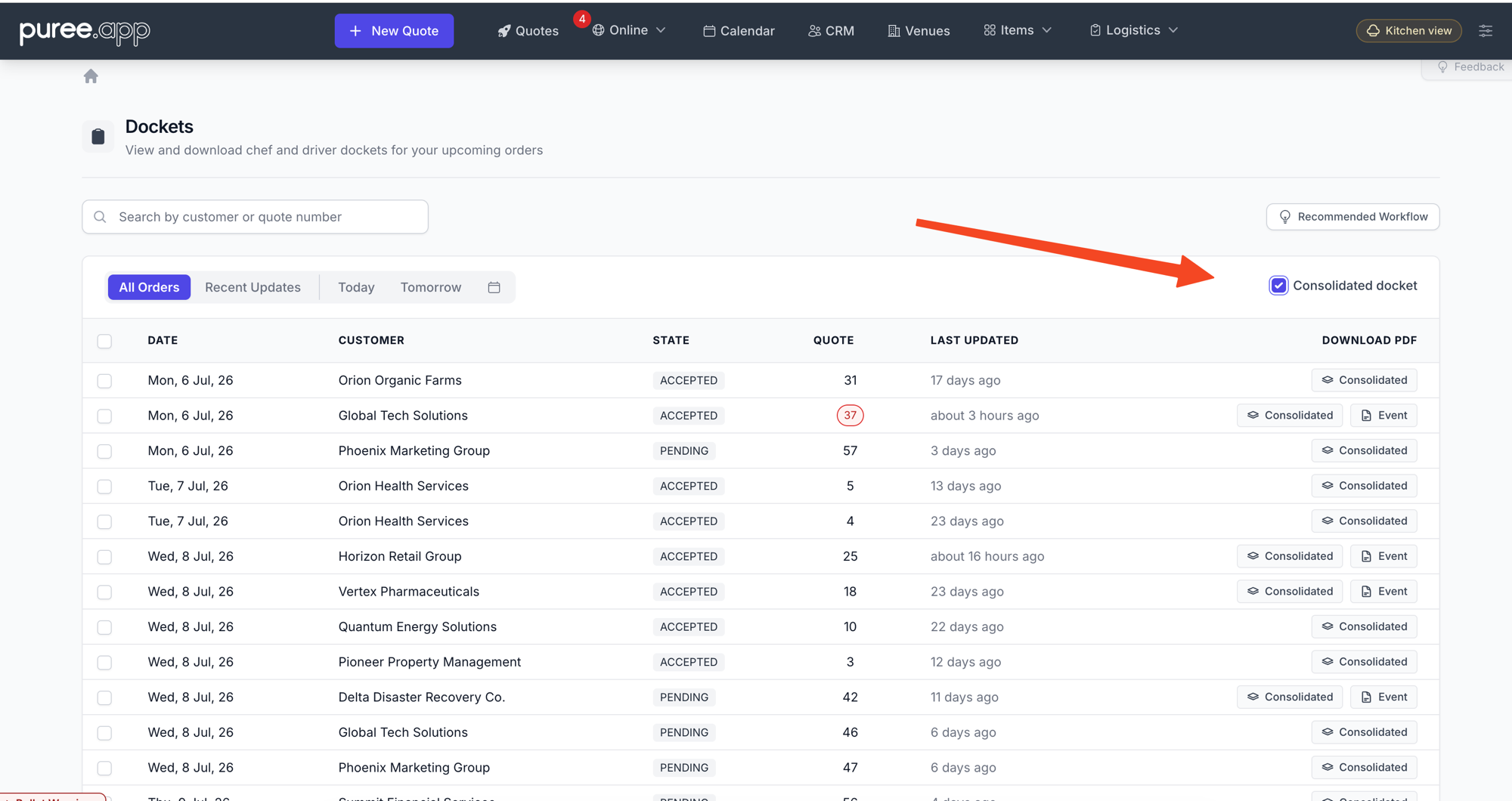
Your choice is saved for the whole account, so the list stays the way you left it — for you and your team — next time anyone opens the Dockets page, on any device.
Downloading for Several Orders at Once
To print a run of orders together, tick the checkboxes beside the orders you want on the Dockets list, choose Consolidated from the docket-type dropdown in the bulk bar at the bottom, and click Download PDF. Each selected order’s consolidated docket is combined into one file. Orders with nothing to prepare are skipped automatically.
Reading the Footer
The footer of every page carries the order reference, when the order was last updated, and when the docket was printed — so you can always confirm you’re holding the latest version. As with the other dockets, if an order changes after you’ve printed, download it again to pick up the update.