
Resources
Help & articles
Guides, how-tos and news for your catering business.
Help topics
Quotes & Orders
Creating a Quote
How to create a quote in Puree using the two-page workflow: event details first, then items, staff and packages.
Learn how to create quotes in Puree using the two-page workflow.
Before You Begin
Ensure your items and categories are set up in Menu Items. Configure commentary templates and terms and conditions in Settings.
For more information, see our Items & Categories help page and our Getting Started help page.
Page 1: Quote Details
Click New Quote from the main navigation. The first page collects quote details before adding items.
Event or Delivery Date
Select the date for the event or delivery. The system displays the number of existing quotes on that date.
Customer Selection
Select an existing customer or create a new one. Choose a contact and delivery address. Customer details can be updated directly in the quote.
Event Name
Beside the customer dropdown there is an optional Event name field. Use it to name the job itself, for example “Harry and Megan’s Wedding” or “Q3 Board Lunch”, without changing the customer’s name. The event name appears throughout Puree wherever you see the quote: in the orders list under the customer’s name, on the quote page, on the dockets index, and on your chef, driver and consolidated dockets and the event brief.
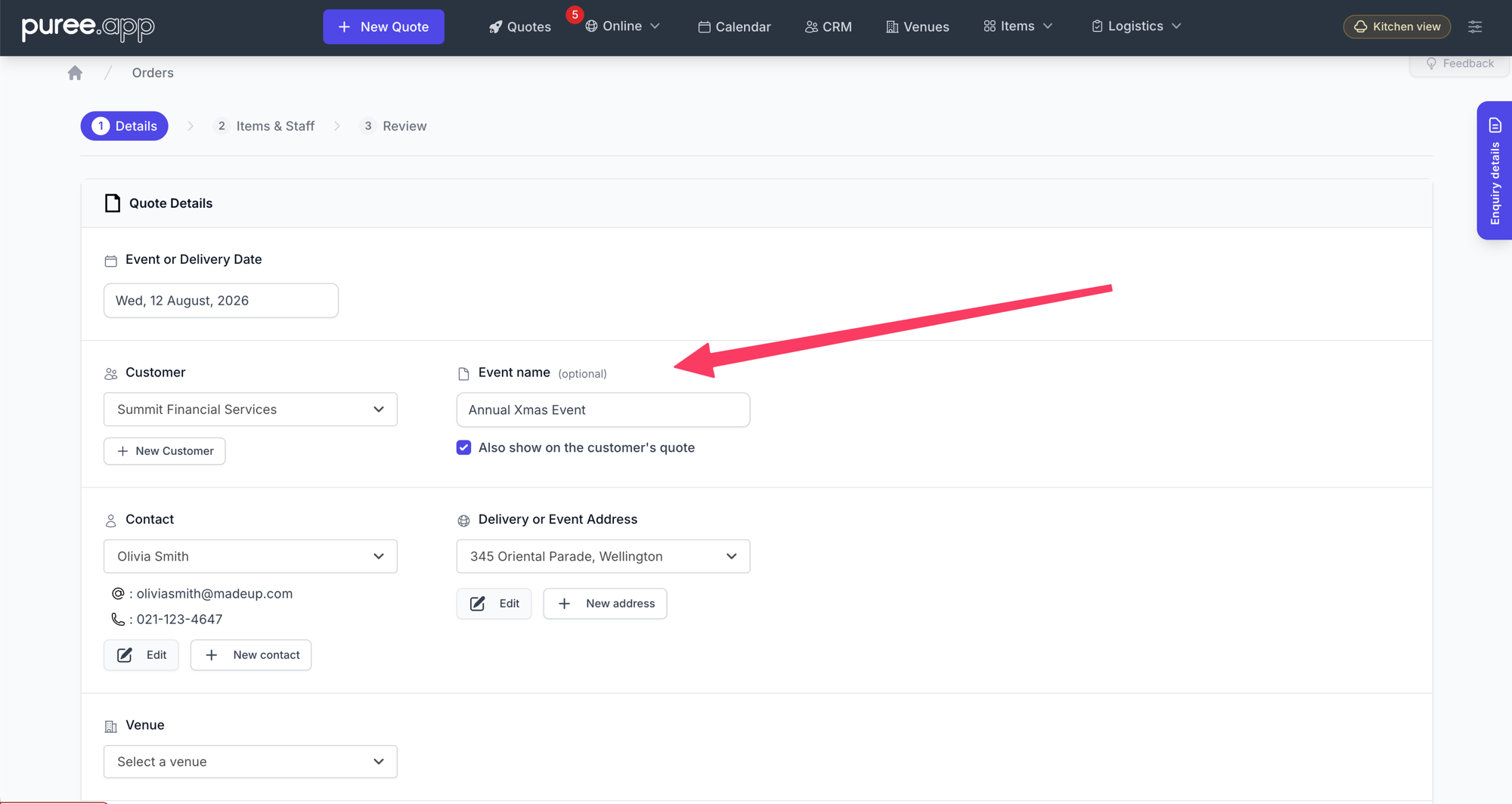
Underneath the field is a tick box: Also show on the customer’s quote. Leave it unticked and the event name stays internal, visible to your team only. Tick it and the name is added to what the customer sees: it becomes the heading on the quote, appears in the quote details, and leads the subject line of the quote email. Every quote template supports this, including your own branded templates.
The setting is per quote, so you can name every job internally and choose case by case which names the customer sees.
Order Type
Select the order type: Delivery only, Staffed event, Staffed event with deliveries, Customer to collect, or Venue hire only.
For delivery orders, specify delivery times. Multiple delivery times can be added for events requiring staged deliveries (e.g., morning tea at 10:00am, lunch at 12:30pm).
Additional Details
Set the delivery fee, customer reference, and select terms and conditions. Configure the quote expiry date.
Discounts and Deposits
Apply discounts or surcharges. Two types are available: discreet (adjusts item prices, not shown separately) and explicit (shown as a line item on the quote).
Discounts can be percentage-based or fixed amounts. Specify deposit requirements if payment is needed in advance.
Commentary
Add introduction and event format commentary. These appear at the top of the quote. Use commentary templates to insert pre-written text blocks.
Click Next to proceed to the items page.
Page 2: Adding Items
The items page uses a tab-based interface with master category tabs at the top and category buttons below.
Master Category Tabs
Master category tabs appear at the top: Menu, Beverages, Staff, Equipment, Misc, and Venue (if applicable). Each tab displays a count of items added from that category.
Click a tab to view its categories. The Menu tab is selected by default.
Category Navigation
Below the master tabs, category buttons appear for the selected master category. Click a category button to view its items.
Category buttons display a count badge showing the number of items added from that category.
To browse by your item tags instead, use the Category / Tag switch at the top right of the category buttons. In Tag mode each button is one of the tab’s tags, plus Untagged for items with none, and shows only the items that carry it. An item with two tags appears under both, but it’s still one item: adding it from either button adds the same line, and both buttons’ badges count it. The switch is on the Menu, Beverages, Equipment and Misc tabs (Packages, Staff and Venue keep their own buttons), and Puree remembers your choice for your next quote. See Item Tags: Find a Whole Menu in One Search, Whatever Categories It Sits In.
Adding Items
Items from the selected category appear in a table with columns for Action, Item name, Sold (quantity sold on this date), and Price. Click the + Add button next to an item to open the add item modal.
In the modal, enter the quantity. For delivery orders, select the delivery time. For menu items, select a menu header to group items by service time (e.g., Morning Tea, Lunch).
The item name can be edited in the modal. This customises the name for this quote only. Set the price per unit if different from the default.
For items with delivery temperature options, select delivered heated or delivered chilled. Add chef notes if needed.
Click Add to Order to add the item. The item appears in the order summary sidebar on the right.
Global Search
Use the search bar at the top to search across all items, packages, and staff. Search results appear in a dropdown showing matching items grouped by category.
Click a search result to open the add item modal for that item.
Managing Added Items
The order summary sidebar on the right displays section totals for each master category. Click View Full Order to see all added items in a modal.
In the order review modal, items are grouped by master category and category. Click an item to edit its quantity, price, delivery time, menu header, or notes.
Remove items by clicking the remove button in the order review modal.
Adding Staff
For staffed events, click the Staff tab. Click Add Staff to open the staff modal.
Select the staff position, quantity, hourly rate, start time, and finish time. Click Add to Order.
Venue Reservations
For venue hire orders, click the Venue tab. Click Add Reservation to add venue reservation types with start and finish times.
Section Commentary
Each master category has optional commentary. Click Add Commentary to open the commentary modal. Select a template or write custom text.
Commentary appears above items in that section on the quote. Use this to add context about menu items, beverage service, equipment notes, or staff details.
Order Summary
The sidebar displays the subtotal, discounts or surcharges, delivery fee, sales tax, and total. The total updates automatically as items are added or removed.
Click Save to save the quote. Click Cancel to discard changes and return to the orders list.
Going Back to Details
Nothing is written to the quote until you click Save on the items page. Until then, your work lives in the session.
If you need to change the date, venue, guest numbers, or a delivery time after you have started adding items, click Back to details in the Summary panel on the right (above Cancel and Save), or click the 1 Details breadcrumb. Either one returns you to the details step with your basket intact: items, packages, staff, venue reservations, options, custom lines, and delivery assignments all come with you.

Going back never blocks, even if you are mid-way through adding an item. Fix what you need, continue to items, then Save when you are ready. Closing the browser tab or using the browser back button is different: Puree warns you if that would discard unsaved work.
For more detail, see our article Back to Details: Return to the First Step of a Quote Without Losing Your Work.
After Saving
After saving, the quote appears in the orders list. Click the quote to view the full details.
From the quote view, email the quote to the customer using a pre-configured email template. The quote can be downloaded as a PDF or shared via a public link.
Edit the quote by clicking Edit. This loads the quote back into the two-page workflow. Changes are saved using the same process.
See When a Customer Has Viewed the Quote
Puree records when your customer opens the quote. To check, open the quote and click Show audit trail at the bottom of the page. Each view appears as “Someone viewed the quote at customer link.” with the date and time.
- What counts as a view: opening the quote from its customer link, however you sent it, including from the customer portal. This covers the standard quote page and your branded quote templates.
- PDF downloads: if the customer downloads the PDF from the quote, you’ll also see “Quote PDF was downloaded at customer link.”
- Repeat views: repeat views are recorded at most once every five minutes, so refreshing the page doesn’t fill the trail.
- Previews don’t count: opening the quote with the preview buttons inside Puree isn’t recorded. If someone on your team opens the customer link itself, that is recorded as a view.
- Who viewed it: Puree records that the quote was opened, not who opened it. If the customer has forwarded the link, a view may be from someone else.
Views are shown in the audit trail only. They don’t send a notification and don’t appear on the quotes list or CRM boards.
Tips
Use menu headers to group items by service time. This creates clear sections on the quote (e.g., Morning Tea, Lunch, Afternoon Tea).
For more information, see our Menu Headers help page.
Use the global search to quickly find items without navigating through categories. This is faster for quotes with items from multiple categories.
Watch the video tutorial by clicking How to use this form on the items page. This demonstrates the workflow and key features.
Adjust tax on the quote
Expand Adjust quote tax on the details page. Choose Includes sales tax or Excludes sales tax for this quote. The entered prices stay unchanged; excluding tax adds it on top. Your account setting remains the default for new quotes.
When tax bands are enabled, use Change beside a quote line’s tax label to choose its Tax band. Delivery can use a separate band beside Delivery Fee.
To use one band throughout, turn on Override all tax bands and choose Tax band for all charges. This includes individually selected bands. Turn the override off to restore them. Collapsing the section does not reset your choices.
Review the total and tax breakdown before saving and sending. See Tax Rates.