
New feature
Defaults and Includes: Pre-Select the Usual, or Take the Choice Away
By Andrew Hemphill · 14 August 2026
Your Devonshire tea comes with plain scones, fruit scones, and jam and cream. Until now the only way to say so on a quote was an option group, which meant somebody ticked all three every time, and a customer could untick them. Two changes fix that. An option can now carry a Default so it starts selected, and a whole group can be marked Includes, which is not a choice at all.
Setting a default
Open the item, scroll to Options & Includes, and you will see a small Default pill on each option row, next to its surcharge. Tick the ones that should start selected and save. That is the whole setup.
How many you can tick depends on the group's selection type. A Single group can only have one default, because the customer can only pick one, so ticking a second option releases the first. A Multiple group can have as many as you like, or none at all. Leaving every option unticked keeps the behaviour you have today, so nothing changes on items you do not touch.
Where the defaults show up
Everywhere the item can be chosen. In the quote builder they are already selected when you add the item, and again when you open an existing line to edit it. They apply to items inside packages too, both the fixed items and the ones your customer picks from a choice rule.
On your online order form and store, the customer sees the same thing: the usual selection already made, with the price on the button reflecting it, and every other option still there to switch to. Fewer taps to place a normal order, and fewer orders that arrive with something obvious missing.
A default never overrides a real choice
Defaults only fill in a group that has nothing chosen in it. If a line already has selections, those are what you see, so opening an old quote never quietly changes what was agreed. Set a default today and existing quotes keep exactly the options they were saved with.
One thing worth knowing, because it follows from the same rule: on an optional group, clearing every option leaves the group empty, and empty is the state that brings the default back. Untick one of three defaults and that sticks. Untick all three and they return the next time the line is opened. If a group genuinely needs an all or nothing answer, give it a "None" option of its own and set that as the default.
Compulsory groups pick your answer, not the first one
A compulsory group has always arrived with something selected, and that something was whichever option happened to be first in the list. Now it is whichever option you marked as the default, and the old behaviour only applies where no default has been set. If your compulsory group has been pre-selecting the wrong thing because of the order the options were typed in, this is the fix.
When it is not a choice at all
A default still leaves the customer free to change their mind, which is usually what you want. Sometimes it is not. The three things in a Devonshire tea are not options anyone should be unticking, they are simply what the item is.
Every group now has a small toggle at the top of its card: Options or Includes. Options is the choice you already know. Switch a group to Includes and it stops being a choice: every line in it is on the order, always, and the selection type, the compulsory tick and the Default pills all disappear, because none of them have anything left to say.
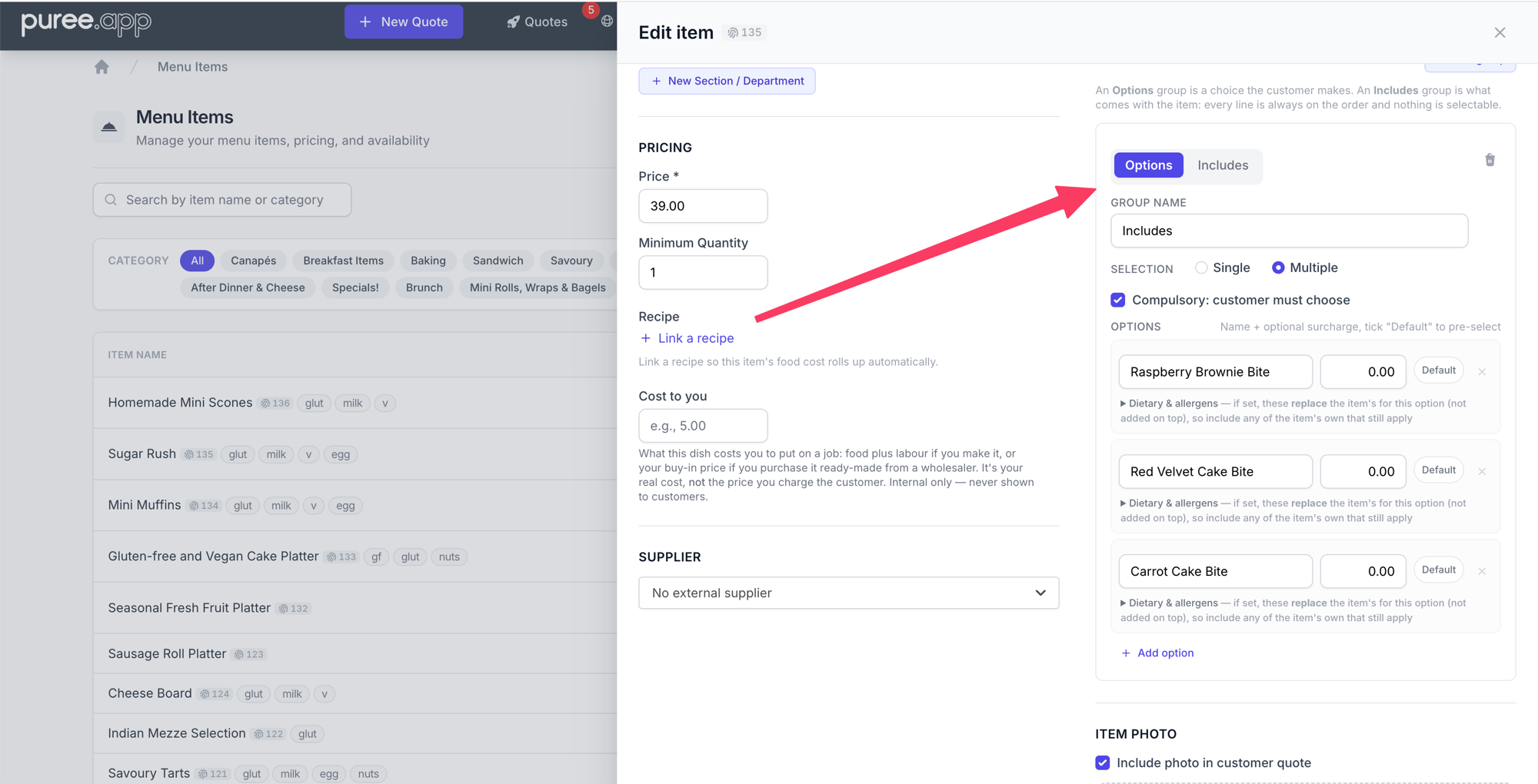
The word follows the group around. Where a choice is headed "Options", a fixed list is headed "Includes": on the item cards in your online order form, in the cart, at checkout, on the order confirmation, and in the quote builder when you or your team add the item. The lines show as plain text rather than buttons, so nobody is invited to click something that is not a decision.
And it holds. An includes group is rebuilt from your item every time an order is saved, so what lands on the order is what you defined, whatever happened in the browser on the way there.
One thing to watch: a line in an includes group can still carry a surcharge, and because it is always on the order that surcharge is always charged. If that is what you mean, it works. More often it is tidier to leave those at zero and put the money in the item's own price.
Nothing to switch on
Both are live on every account, and every group you already have stays an Options group set exactly as it was. Open an item, tick the choices your customers almost always want, switch anything that was never really a choice over to Includes, and the next quote you build starts a step ahead. For the full walkthrough of setting groups up in the first place, see our Item Options help page.
As always, if you have questions or feedback, reach out to us at email@puree.app.