
Event Names: Give Every Quote a Name Without Renaming Your Customer
By Andrew Hemphill · 10 August 2026
Every quote in Puree is filed under the customer, because the customer is who is paying. But that is rarely what you call the job. The bride’s father books the catering, so the quote reads “Michael Davis”, while you and your whole team only ever call it “Harry and Megan’s Wedding”. Caterers have been closing that gap for years by typing the event into the customer’s name field, which works right up until that same customer books again and their record still reads like a wedding from last March. Event names fix it properly: every quote can carry its own name, and you decide per quote whether the customer sees it.
One Field, Beside the Customer
On step 1 of the quote, right next to the customer dropdown, there is a new Event name field. It is optional. Type whatever you would call the job when you talk about it: “Harry and Megan’s Wedding”, “Q3 Board Lunch”, “Fisher 21st”, “Tuesday School Run”. The customer record stays exactly as it should be, a customer.
Underneath it sits a single tick box: Also show on the customer’s quote. That is the whole feature. Leave it unticked and the name is yours alone. Tick it and the name travels with the quote all the way to the customer.
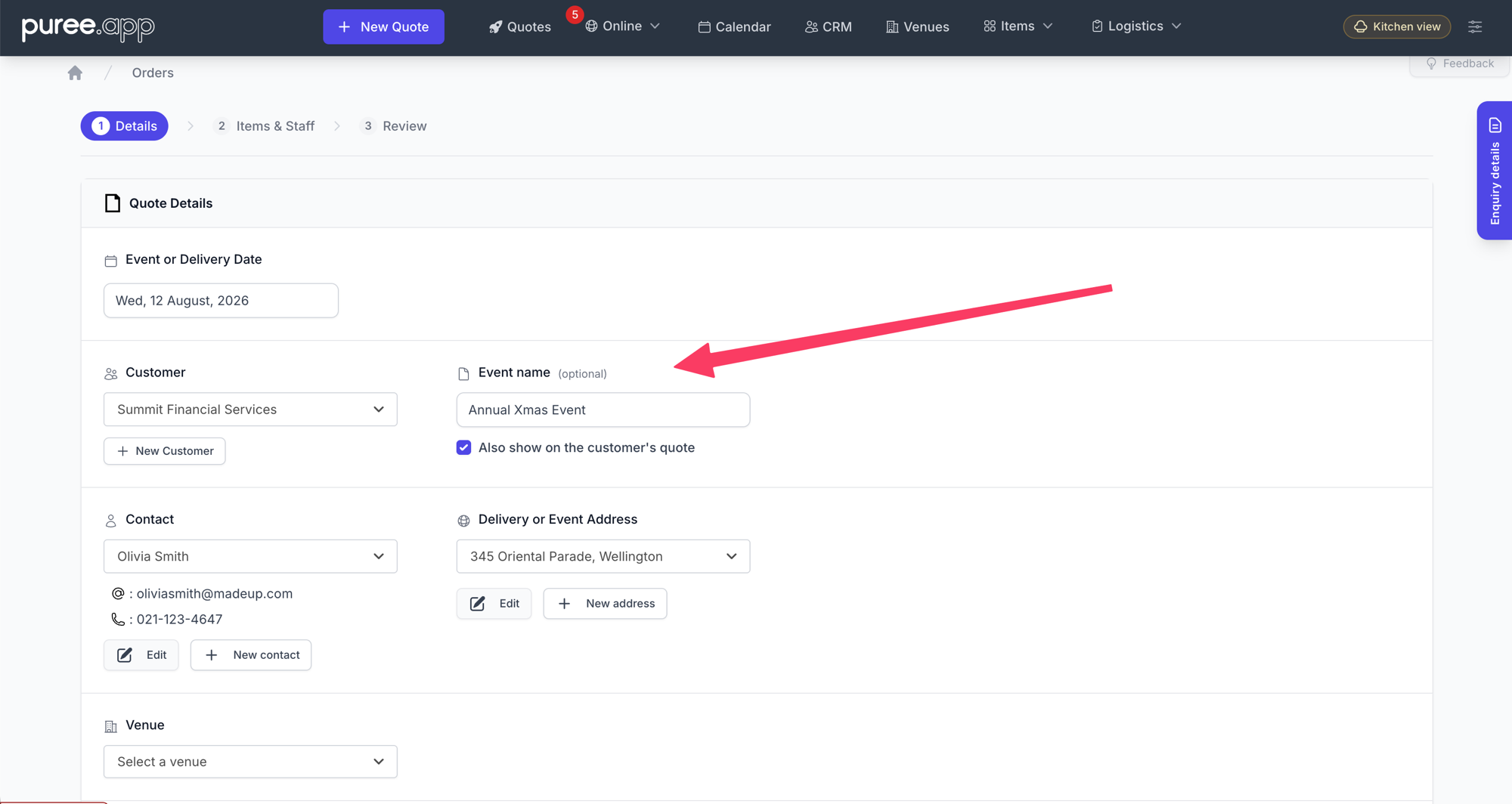
The Event name field sits beside the customer on step 1 of the quote, with the customer-facing tick box directly underneath.
Good to know: the tick box is set per quote, not per account. Name every job internally, then choose case by case which names are worth showing the customer. A wedding usually is. “Tuesday School Run” usually is not.
Internal First
Whether or not you tick the box, the event name shows up everywhere your team works:
- The orders list: the event name sits under the customer’s name on every row, on desktop, tablet and phone. Scanning a busy month for “the Fisher 21st” stops being a memory test.
- The quote page: an “Event name” line sits at the top of the quote details, right above the customer.
- The customer’s quotes tab: when one customer has booked you six times, the list finally tells you which six.
- Dockets and briefs: the chef docket, driver docket, consolidated docket and event brief all print the event name above the customer’s name, in both the on-screen and PDF versions.
That last one matters more than it sounds. A driver reading “Harry and Megan’s Wedding” at the top of a run sheet knows instantly which of today’s three jobs is in their hands.
Then, If You Want It, Customer Facing
Tick Also show on the customer’s quote and the name becomes part of the document your customer opens:
- It becomes the heading. Where the quote used to open with the customer’s name, it now opens with the event, and the customer’s name moves to the line beneath. “Harry and Megan’s Wedding”, then “For Michael Davis”.
- It joins the quote details. An “Event” row appears alongside the reference number, so the name is there in writing as well as in the headline.
- It leads the email. The quote email subject becomes “Harry and Megan’s Wedding, Quote #1042 from Your Catering Co.” instead of a bare quote number. In a crowded inbox, that is the difference between opened and ignored.
- It works in every template. The standard quote, the quote PDF, and all of the bespoke branded quote templates carry it, each in that template’s own style rather than a bolted-on box.
If you leave the box unticked, nothing on the customer’s side changes at all. The quote looks exactly as it always has.
Why It’s Worth the Ten Seconds
- Your customer records stay clean. A customer is a customer. Their name is their name. Repeat bookings stop rewriting history.
- Repeat customers become readable. Corporate clients who book you monthly turn from a wall of identical rows into a list you can actually navigate.
- It reads like a proposal, not an invoice. A wedding quote headed with the couple’s event feels written for them, because it was.
- The kitchen and the road get context. The people packing and driving see the same name you use when you talk about the job.
Getting Started
Event names are live now for every account, and there is nothing to switch on. Open any quote, look beside the customer dropdown, and start typing. Existing quotes are untouched until you name them, and an unnamed quote behaves exactly as it did before.
Want the full walkthrough of building a quote? See our Creating a Quote.