
Consolidated Docket: Menu, Beverages and Equipment on One Prep Sheet
By Andrew Hemphill · 7 July 2026
Prepping an order often means printing several dockets — the chef’s menu list, the equipment sheet, the beverages — and juggling them all in the kitchen. The Consolidated Docket pulls what you need to pack an order onto a single sheet: menu, beverages and equipment, each grouped the way you already read them, with the chef and driver notes right at the top.
One Sheet, Not Four Stapled Together
This isn’t the chef and driver dockets stitched end to end — those are separate paperwork for two different roles. The consolidated docket is one continuous prep and packing report. The menu is grouped by menu header or category, beverages and equipment by category and supplier, and only the sections that actually apply to the order appear — no empty headings to scan past.
Chef and Driver Notes Up Front
The notes that matter most for getting an order out the door — your chef notes and driver notes — sit at the very top, under the order details. Nothing important is buried three pages down.
Delivery Times Where You Need Them
On delivery orders, the delivery time appears inline on each group’s heading — for example Lunch — 11:45 AM or Beverages (non-alcoholic) — 11:45 AM. When a category is split across more than one run, its heading repeats for each time, so it’s always obvious which items belong to which drop.
Download One, or a Whole Day at Once
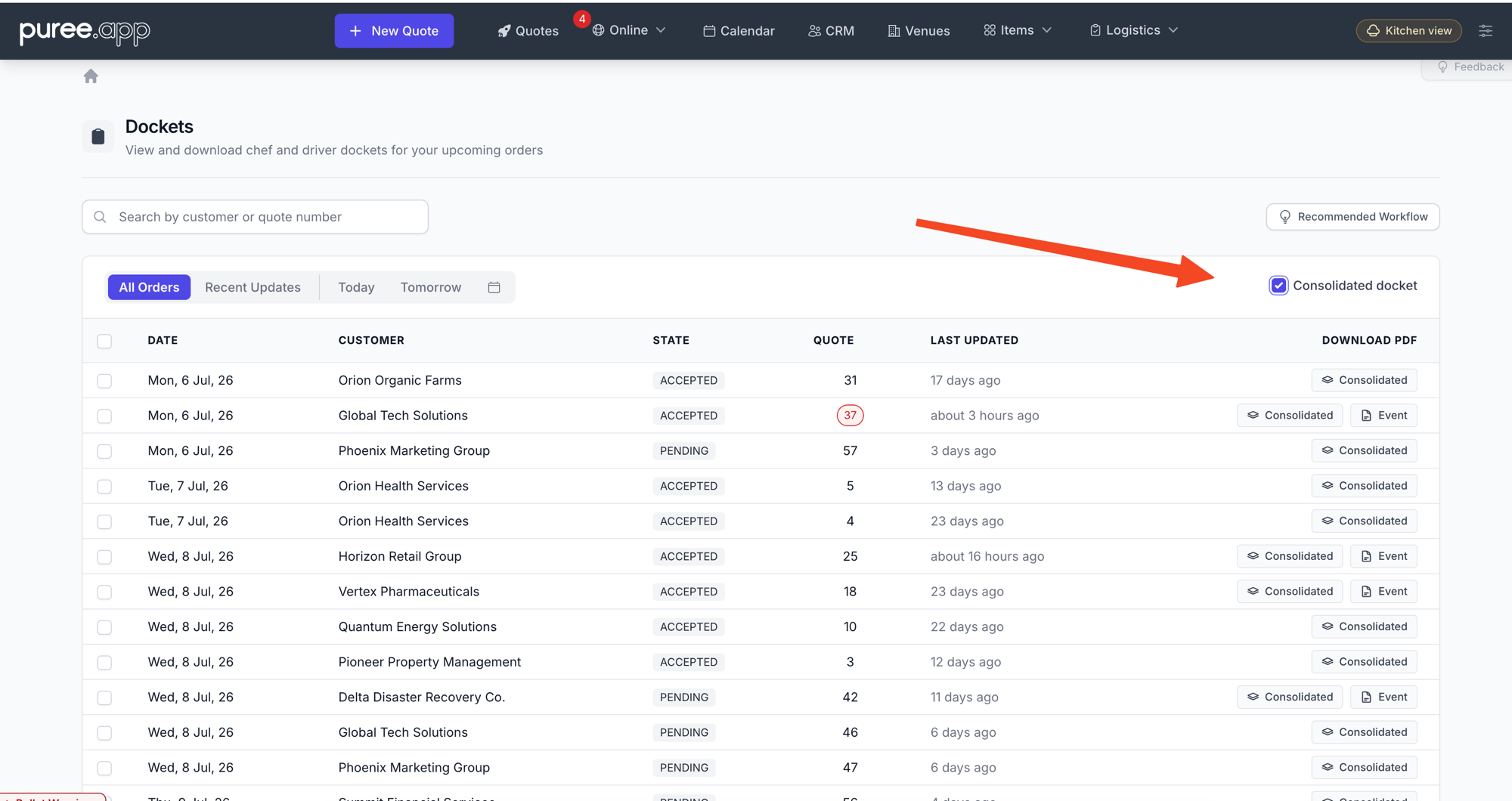
Grab it for a single order from the Dockets menu on any quote or order. On the Dockets list, tick the Consolidated docket checkbox to switch every row to just the Consolidated and Event buttons — the choice is saved for the whole account, so it sticks for your team on any device. To print a run, tick the orders you want, choose Consolidated in the bulk bar, and download them combined into one file.
Always the Latest Version
Every page footer shows the order reference, when the order was last updated, and when the docket was printed — so you can confirm at a glance that you’re holding the current sheet. If an order changes after printing, download it again to pick up the update.
Getting Started
The Consolidated Docket is available on every account today. Open any order and choose Consolidated Docket from the Dockets menu to try it.
For a full guide, see our help centre article: our Consolidated Docket help page.
As always, if you have questions or feedback, reach out to us at email@puree.app.