
Calendar Colour Coding: Choose Your Own Colours for Order Status and Order Type
By Andrew Hemphill · 5 August 2026
The orders calendar has always shown you which orders are pending and which are accepted. Now you decide how that looks. With calendar colour coding, you choose the colours for pending and accepted orders, and you can give each order type its own colour too. One glance at the month and you know it’s a delivery-heavy Tuesday with two staffed events on Saturday, before you’ve read a single name.
Two Kinds of Colour, One Calendar
Every order on the calendar is coloured on two levels, and each answers a different question:
- Status colours fill the whole chip. Pending orders get one colour, accepted orders another, so the state of your month reads instantly (out of the box this is the familiar amber and green).
- Order type colours mark the coloured bar on the left edge of each chip, plus a solid badge on the type label. Give deliveries one colour and staffed events another, and the shape of each day jumps out.
The two work together rather than fighting for the same space: the fill always tells you the status, the bar and badge always tell you the type. An order type you haven’t given a colour simply follows the status colour, so you can colour as much or as little as you like.
How to Set Your Colours
Open your calendar and click the palette button next to the month controls. A colour panel opens with a row of swatches for each setting:
- Pending and Accepted: pick a swatch for each status, or choose the white swatch for no fill at all, so those orders show as simple outlined cards.
- Each order type (Delivery, Staffed, Collect and so on): pick a swatch, or leave it on None to follow the status colour.
Click Save colours and the calendar updates immediately. Changed your mind? Reset to defaults puts everything back to the standard amber and green in one click.
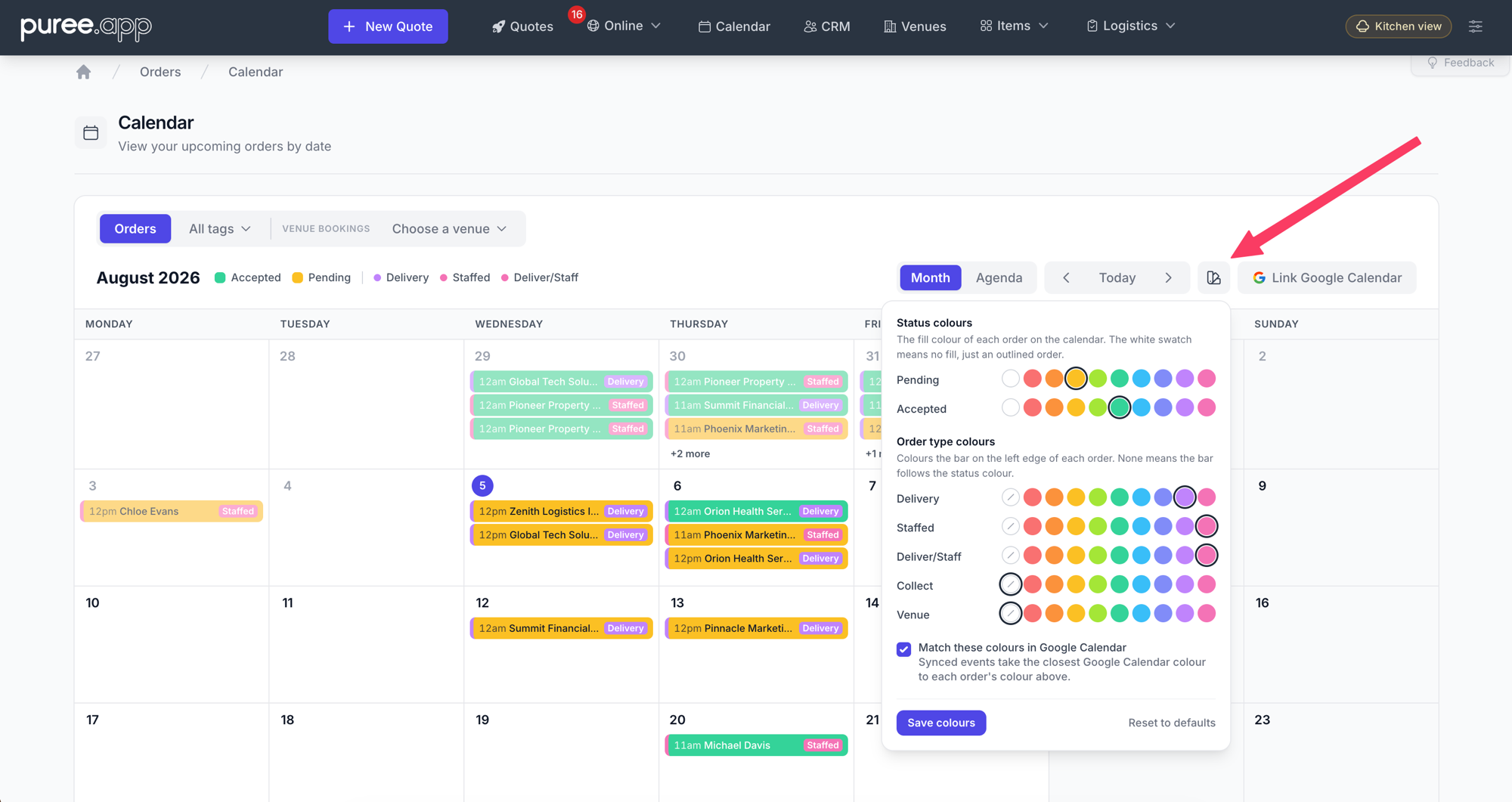
The colour panel lives on the calendar itself: status colours fill each order, order type colours mark the left bar and the type badge, and the legend follows your choices.
Good to know: colours are set once for your whole account, so everyone on your team sees the same calendar. There’s nothing to configure per person, and no way for two people to end up reading different colours.
Matching Colours in Google Calendar
If you sync your orders to Google Calendar, your colours can follow them there. Tick Match these colours in Google Calendar in the colour panel and every synced event takes the closest Google Calendar colour to the order’s colour in Puree. Your phone’s calendar, your kitchen wall screen and your Puree calendar all tell the same story.
Google Calendar only offers eleven event colours, so Puree picks the nearest match for each of your choices automatically. When you save, upcoming events that are already in your Google Calendar are updated too, so the change appears within a few minutes and there’s nothing to re-sync by hand. Untick the box at any time to go back to Puree’s standard Google Calendar colours.
Everywhere the Calendar Lives
Your colours follow the calendar wherever you use it: the month grid, the agenda view, and the mobile calendar all pick them up. Venue booking calendars use your pending and accepted colours too, so confirmed and unconfirmed reservations match the rest of your account. The legend above the calendar always reflects your current choices, with a dot for every order type you’ve coloured.
Why Colour by Order Type?
- Plan staffing at a glance: staffed events need people booked well ahead. Give them a strong colour and a heavy week is obvious a month out.
- Spot delivery runs: colour deliveries and you can see which mornings the van will be flat out.
- Catch collections: customer pickups are easy to overlook in a busy week. A distinct colour keeps them visible.
- Keep venue hire separate: room-only bookings look very different to a full catering job. Now they look different on the calendar too.
Getting Started
Calendar colour coding is live now for every account, and there’s nothing to switch on. Open Calendar, click the palette button, and pick your colours. If you never touch it, nothing changes: the calendar keeps its familiar amber and green.
New to the calendar itself? See our Calendar & Google Calendar for a tour of the month grid, agenda view and venue booking tabs.