
Packaging Labels: Choose What Prints on Every Sticker
By Andrew Hemphill · 19 August 2026
Stickers used to be a one-click download: pick a date, pick one of five Avery PDFs, hope the count was close enough. That still works. But packing a mixed day usually means you want these orders, those fields, and a sheet that actually matches the labels in the cupboard. Builder is that extra step, sitting next to the original downloads on the same Packaging Stickers page.
Original Stays Where It Is
Logistics still has one Stickers item. Open it and the top right switches between Original and Builder. Original is unchanged: five one-click Avery downloads for the day, still on L7159. Item-name stickers no longer print delivered hot or cold — that belongs on the docket, not the box.
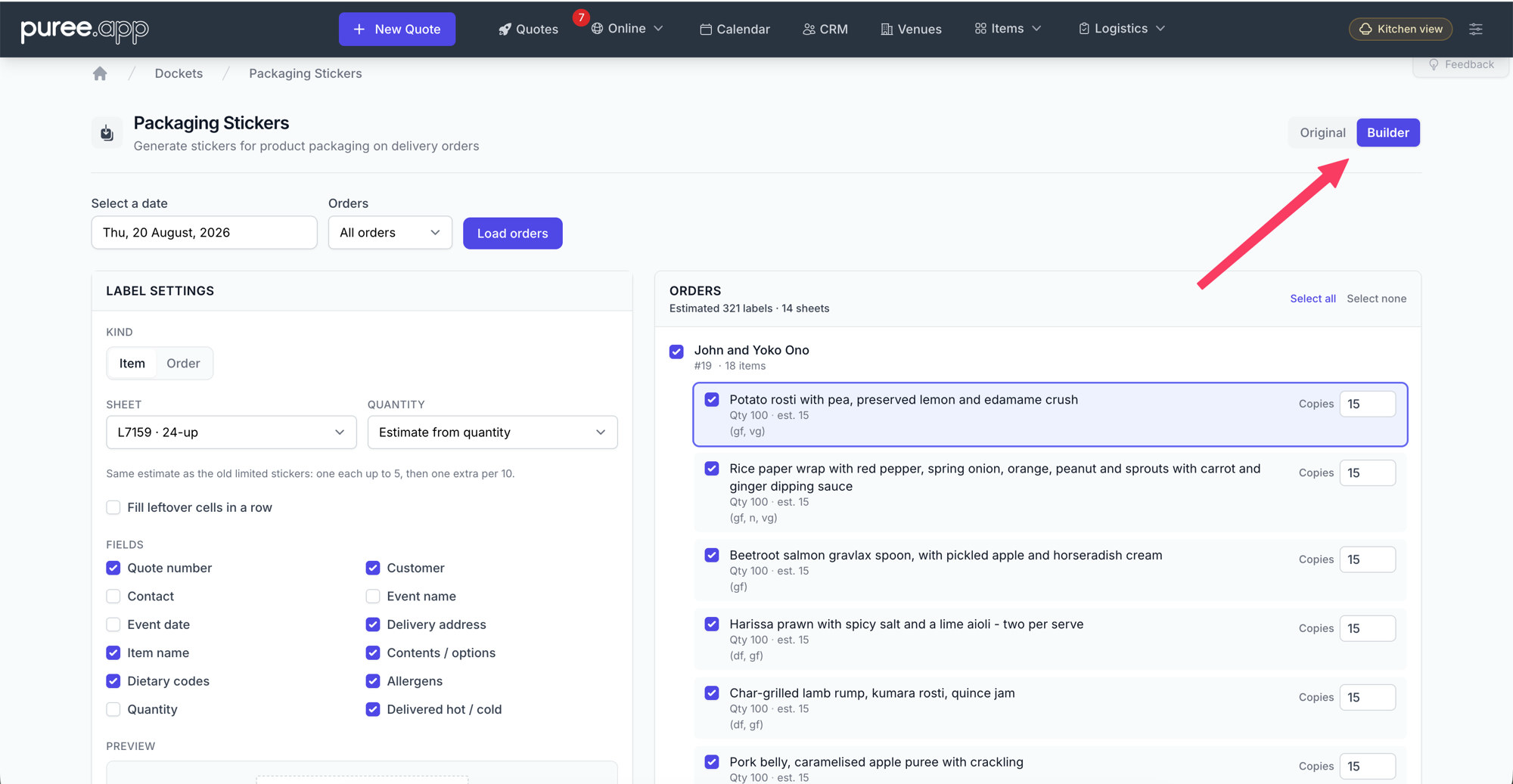
Builder: Tick What You Need
Load a date, then tick the orders and items. Choose whether you are printing an item sticker (the dish) or an order sticker (the quote number, customer and address). Turn fields on and off. Pick L7159, the wider L7163, or the small L7651. The live preview is the same layout as the PDF — one centred block — so you can see the sticker before you print a sheet.
Quantity still has the limited estimate you know from the old stickers, plus one-per-quantity, one-per-line and a fixed count. Type over any line if the estimate is wrong. On an order label, estimate from quantity is one copy — you do not need 200 identical quote-number stickers because the order is large.
Bundles Print as the Box
A lunch box or platter is the parent name, then each content on its own dashed line. No jammed heading, and no 12x sandwich prefix on the contents. You print one label for the box, the same way the quote and the driver docket already read.
Remembered for the Team
Kind, sheet, quantity rule and fields save on the account. The next person who opens Builder — on another computer — sees the same defaults. Date and which orders you ticked stay for this visit only.
From a quote, Dockets → Labels opens Builder with that order already selected.
Getting Started
Open Logistics → Stickers and switch to Builder. For the full walkthrough — sheets, quantity rules and every field — see our Packaging Stickers help page.
As always, if you have questions or feedback, reach out to us at email@puree.app.